Flows
Draw an automation from triggers, logic and actions, test it and arm it.
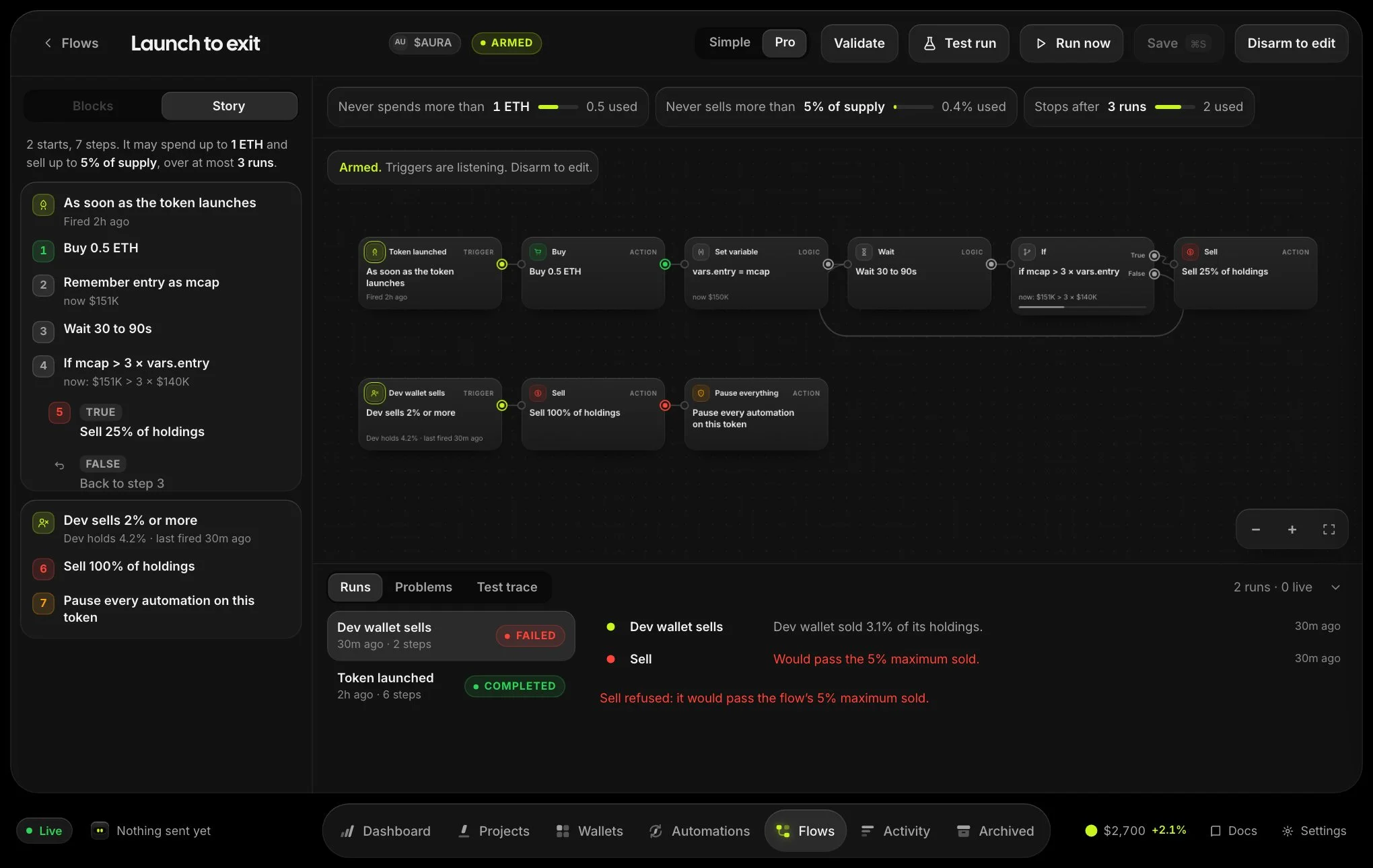
A flow is an automation you draw. You connect blocks on a canvas: a trigger that starts a run, logic that waits, checks and branches, and actions that trade or change your other automations. One flow can cover a token from launch to exit, for example:
Launched → buy → wait → if the market cap is 3× the entry, sell 25% → and if the dev dumps, sell everything and pause all automations.
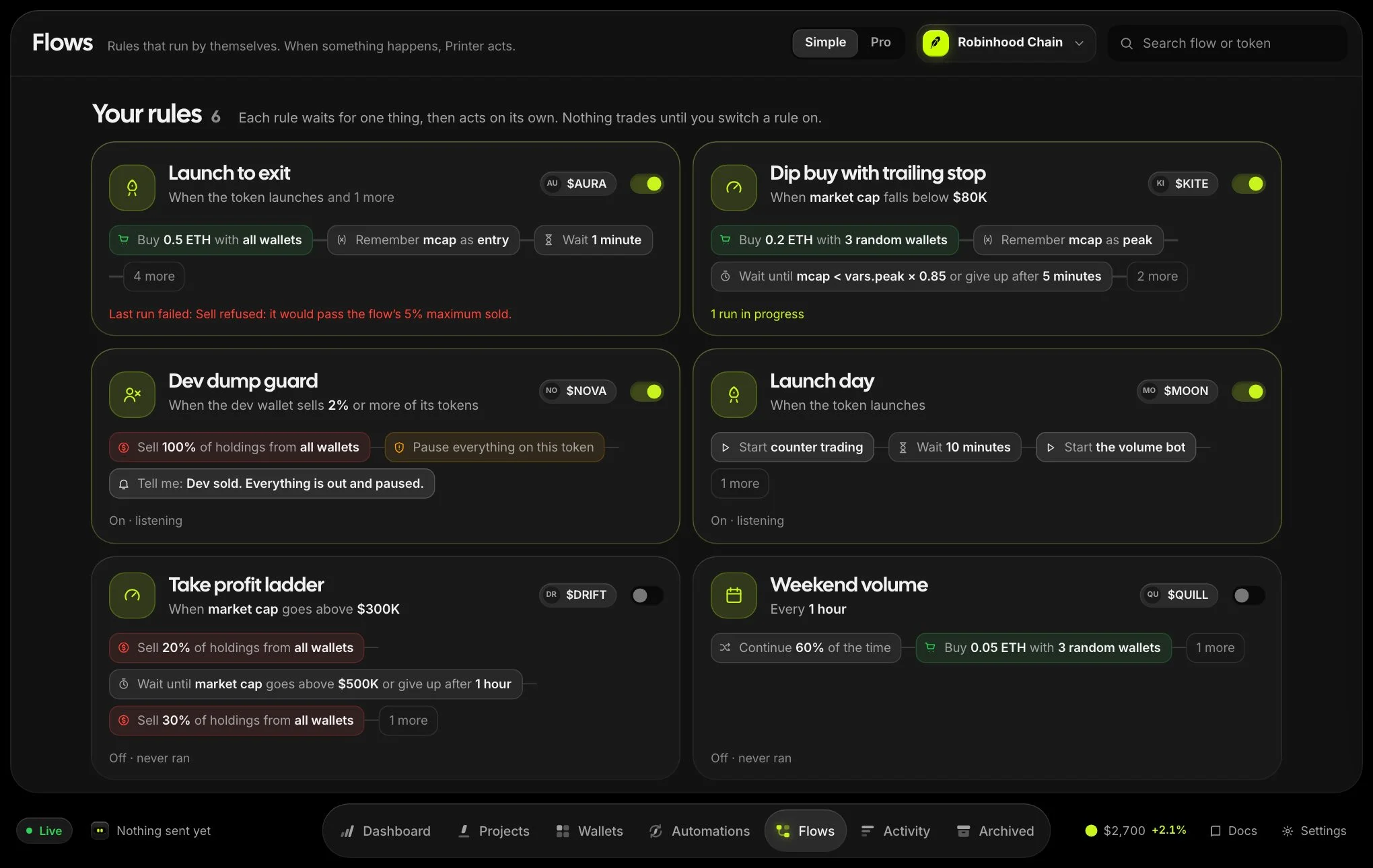
Flows are listed on the Flows page for the selected chain, and in each token’s Automations tab. They are available wherever the token has automations or counter trading.
Create a flow
- Choose New flowFrom the Flows page, or New flow in a token’s Automations tab.
- Pick the token and a starting pointStart from a blank canvas or a template. Templates come with sensible blocks and limits you can change.
- Build, save and testThe editor opens. Nothing runs until you arm the flow.
The editor
- Palette (left): every block available on this chain, grouped into triggers, logic and actions, with search. Drag a block onto the canvas, or click it. With a block selected, clicking adds the new one after it and connects them.
- Canvas (middle): drag from a block’s output on the right to another block’s input on the left to connect them. Blocks with several outputs label each one, such as
True/FalseorMet/Timeout. Triggers have no input. Hover a connection and press its × to remove it. - Inspector (right): the selected block’s settings, and a Then list to connect outputs without dragging. With nothing selected it shows the flow’s description and safety limits.
- Bottom panel: Problems, Test run and Runs.
Each block shows a one-line summary of what it does, like Sell 25% of holdings or Wait 30 to 90s, and a badge when something needs fixing.
| Shortcut | Does |
|---|---|
| ⌘S | Save |
| ⌘Z | Undo |
| ⇧⌘Z | Redo |
| ⌘D | Duplicate the selected blocks |
| ⌫ | Delete the selection |
| Esc | Clear the selection |
Changes are saved only when you press Save. You are warned before leaving with unsaved changes. On phones the editor is view-only.
Safety limits
Every flow has hard limits that the backend checks on every step. A step that would break one is refused and the run stops.
| Limit | Meaning |
|---|---|
| Maximum spend | The most the flow may ever buy with, in the token’s trading currency, across all runs. |
| Maximum sold | The most it may ever sell, as a share of total supply, across all runs. |
| Maximum runs | Stop starting new runs after this many. |
| Runs at the same time | Triggers that fire while this many runs are active are skipped. |
| Steps per run | A run that takes more steps stops. Protects against endless loops. |
| Longest run | A run still going after this long is stopped. |
Validate and test run
Validate checks the saved flow and lists problems, such as a missing setting or a loop with no way out. Click a problem to jump to its block.
Test run walks the flow against the market right now and shows each step it would take and each trade it would make. Waits are skipped and nothing is traded. Hover a step to find its block.
Arming
Switch Arm on to let the flow’s triggers start runs on their own. Printer asks you to confirm and shows the limits first, because armed flows place real trades from the token’s wallets. Run now starts one run by hand.
Disarming stops new runs. You choose whether runs in progress stop too. While a flow is armed and a run is in progress, the graph is read-only so a run is never left halfway through a changed flow. You can still rename it, or disarm it to edit.
Run history
The Runs tab lists every run with its status: running, waiting, completed, failed, cancelled or needs review. Open one to see its timeline: each step with its note, trades and errors, and the variables it set. The path it took is highlighted on the canvas, and a live run keeps updating until it ends. You can cancel a run in progress.