Trading workspace
The token header, chart, tabs and the pinned trade panel.
Open any live token to reach its trading workspace. The market sits on the left. Your controls stay pinned on the right while you scroll.
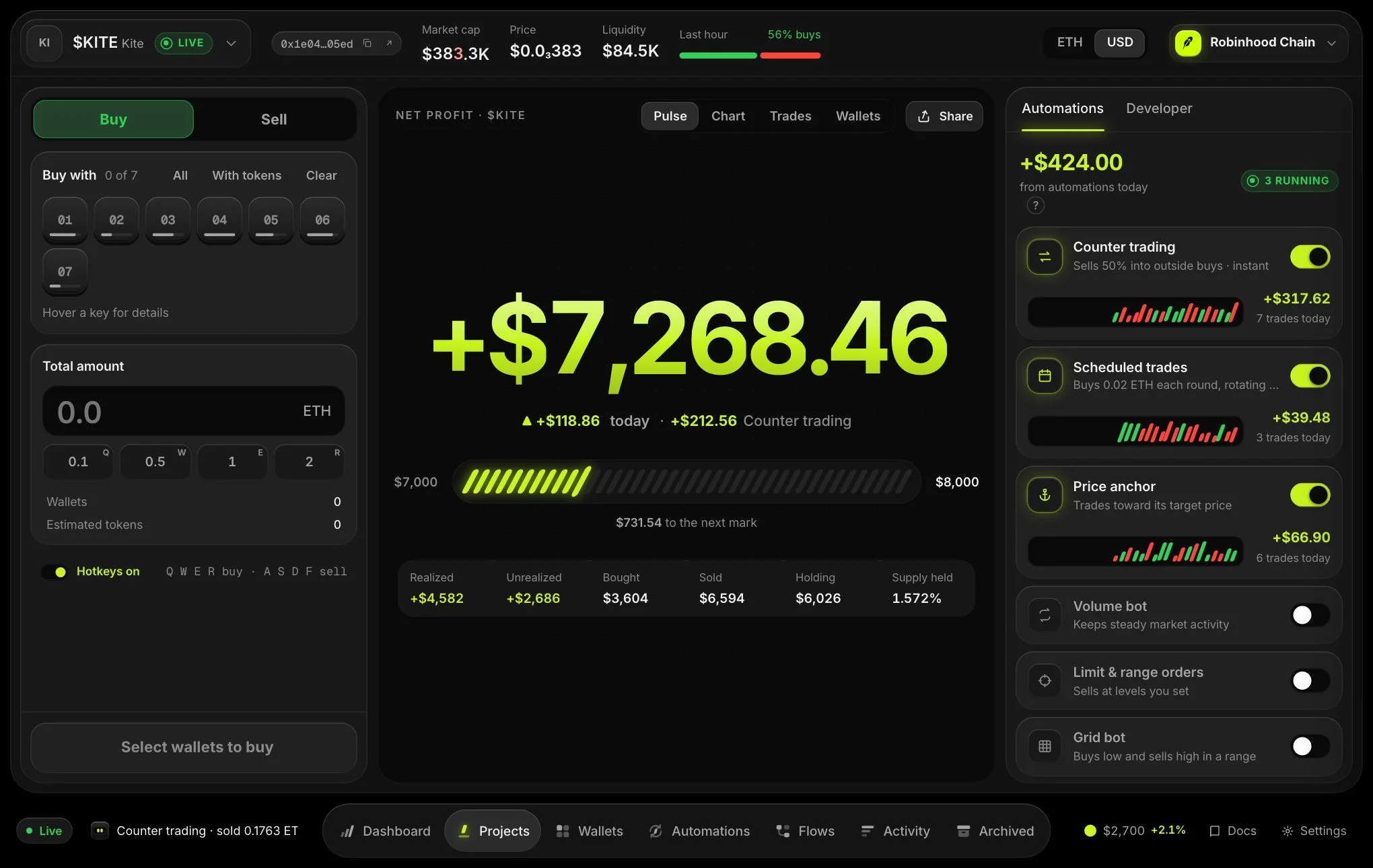
Token header
The token’s logo, symbol and status, its contract address (copy it or open the explorer) and how long ago it launched. Market cap leads the figures, followed by price, liquidity, volume, traders and the last hour’s buy/sell flow. Less important figures hide on narrow screens.
On chains with market data the header also shows the 24h change and volume, holders, FDV, 24h buys and sells, the share held by the top 10 wallets and the token’s age, with links to its website and socials. A yellow Mintable, Freezable or Flagged chip warns that more tokens can be created, that wallets can be frozen, or that the token has been reported.
Use the ETH / USD switch to change how balances and P&L are shown. Market cap is always in USD.
Tabs under the chart
| Tab | What it shows |
|---|---|
| Wallets | Every trade wallet with its balance, holdings and P&L (select the P&L heading to sort by it), plus one-click buy or sell for a single wallet. |
| Live trades | Every buy and sell from everyone as it lands, with market cap at each trade, your wallets marked "You" and trader labels. Your own trades appear the moment they execute, marked "Confirming" until the market feed confirms them. Filter to yours or others, or by trade size. Load older trades at the bottom. |
| Holders | The top holders with balance, share of supply, average buy price and P&L, with your wallets, pools and burned tokens separated out (chains with market data). |
| Top traders | The top 100 wallets by realized profit over 24h, 7d, 30d or 1y, including wallets that sold out, with yours marked (chains with market data). |
| My trades | Your own trade history for this token. |
| Developer | The developer wallet: buy, sell, export its key and liquidity controls. |
| Automations | All strategies for this token, plus wallet aging and gradual funding. |
Chart
On chains with market data the chart is built in: candles with volume underneath, updated live. Pick an interval from 1m to 1D and switch between MCap (the default: price × total supply, in USD) and Price. Hover a candle to read its open, high, low, close and volume. Scroll or drag left to load older history. Your own buys (green arrows below the candle) and sells (red arrows above) are marked on the candle they landed in. Drag the bar under the chart to resize it. Home on that bar resets the height.
On other chains the chart is embedded from an external chart page (Open chart opens it in a new tab), or links to the chain explorer.
Holders
The Holders tab lists the token’s top holders (up to 1,000) and splits the supply into four parts: you (your wallets), liquidity (pools and bonding curves), burned, and outsiders. Outsiders are holders that are not your wallets, a pool or burned, so the cards show how many outside holders there are and how much of the supply they own.
- Hide my wallets and Hide pools & burn are on by default, so the list shows outside holders. Turn them off to see every holder.
- Sort by balance, total P&L or average buy, and search by address.
- Avg buy MCap is the market cap at the holder’s weighted-average buy price (average cost × total supply), so you can compare it straight to today’s market cap. Hover it for the per-token price. It is green when the market cap is above it now and red when below.
- Realized P&L is from what they sold, Unrealized is what they hold at today’s price minus its cost, and Total is both together, with the return on what they bought.
Top traders
The Top traders tab is the leaderboard token scanners show: the 100 wallets with the most realized profit on this token over the chosen period (24h, 7d, 30d or 1y), including wallets that have already sold out. Your wallets are highlighted and marked You, so you can see how they look to other traders, and a line above the table shows how many of your wallets made the list, their best rank and their combined realized P&L.
- Filter to Yours or External traders, and rank by realized P&L or by Volume.
- Avg buy MCap and Avg sell MCap show each wallet’s average buy and sell price as a market cap (price × total supply), so you can compare them straight to today’s market cap. Hover for the per-token price.
- Holding is the wallet’s current balance, or Sold out when it holds none.
The right-hand panel
- Trade ticket: buy with your chosen wallets, or sell. See Buy & sell.
- Your position: net P&L (realised plus unrealised) with its return, then bought, sold, holding, unrealised, realised and supply held. Share makes a P&L card you can download or copy, with an option to show only the percentage.
- Automations: switch counter trading tasks on and off in place and add strategies. See Automations.
Live updates
While a token is open, its price, market cap, balances, position, trades and strategies update the moment they change, without refreshing. Live updates pause while the browser tab is in the background and resume as soon as you return. A connection that goes quiet reconnects on its own. On chains with market data, the chart’s latest candle and the live trades list update the same way.
Token tabs
Every token you open gets a tab above the header, so you can jump between tokens without going back to the list. Press ⌥ 1 to 9 (Alt on Windows) to switch, and close a tab with its ×. Tabs are kept per chain and appear once two or more are open.
On phones
The trade ticket comes first, above the chart, with large preset buttons for your thumb. Sells use a slide to sell control, so a stray tap never sells.